Managing Accounts
This chapter walks through every account management operation: creating, verifying, syncing, editing, and deleting accounts. All of these actions are performed from the Accounts page at /accounts.
Creating a New Account
The Accounts page lists all your configured accounts with their type, verification status, and available actions.
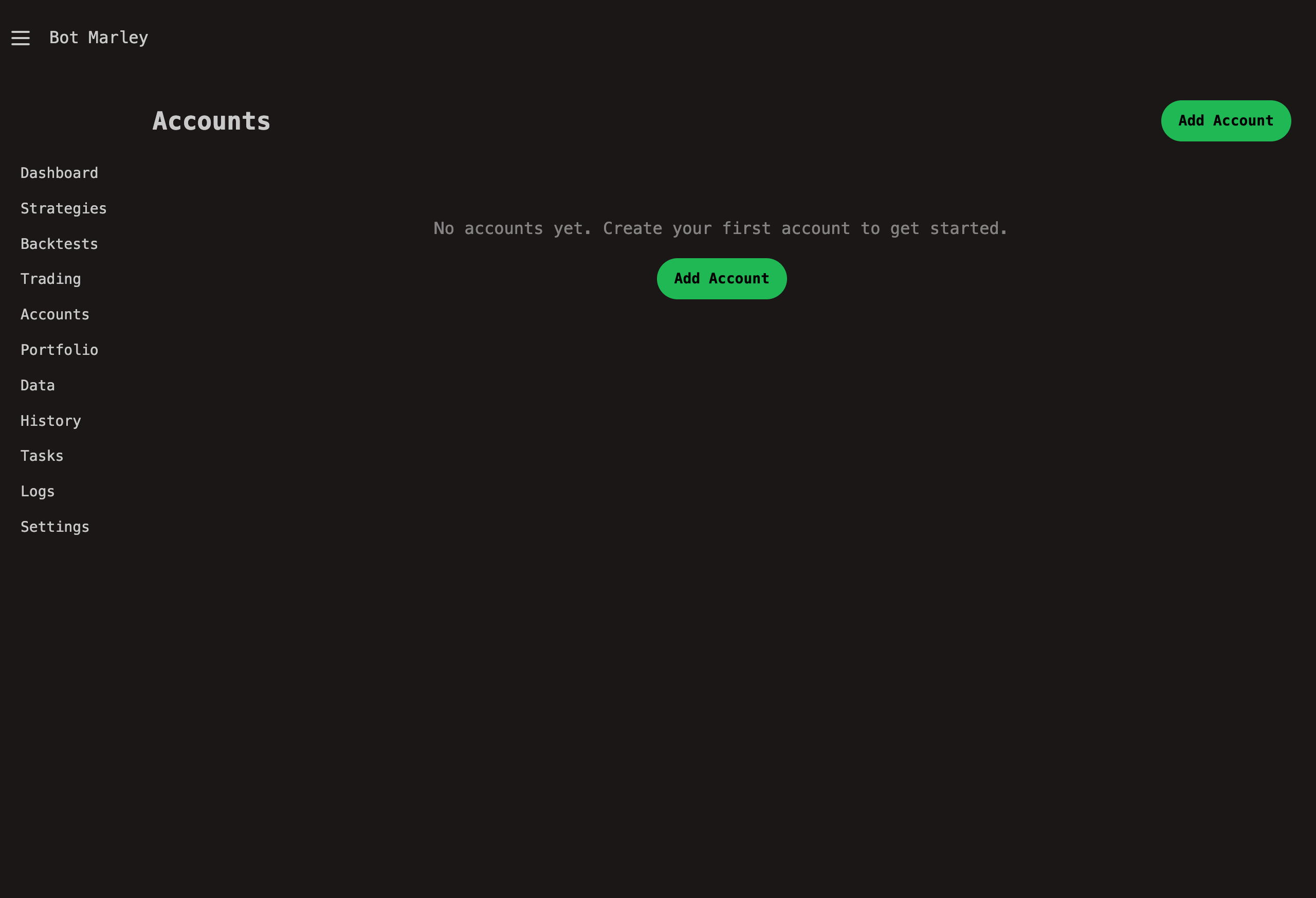
- Navigate to the Accounts page using the sidebar or by visiting
/accounts. - Click the Add Account button in the top-right corner. A modal dialog opens.
- Fill in the form fields:
| Field | Required | Description |
|---|---|---|
| Name | Yes | A label for the account (e.g. "Kraken Main", "Paper Test"). |
| Description | No | Optional notes for your own reference. |
| Account Type | Yes | Choose Paper, Kraken, or Binance from the dropdown. |
| API Key | Kraken/Binance only | Your exchange API key. Hidden when Paper is selected. |
| API Secret | Kraken/Binance only | Your exchange API secret. Hidden when Paper is selected. |
- Click Create.
Botmarley redirects you back to the accounts list. Your new account appears in the table with a verification status of Unverified (for exchange accounts) or N/A (for Paper accounts).
For Paper accounts, you can skip the API fields entirely. Just give it a name, select "Paper (Simulated)", and click Create.
Getting Exchange API Keys
To connect an exchange account, you need an API key pair generated from the exchange's website.
Kraken API Keys
- Log in to your Kraken account at https://www.kraken.com.
- Navigate to Settings (gear icon) then API.
- Click Create API Key (or Generate New Key).
- Give the key a descriptive name (e.g. "Botmarley Trading Bot").
- Set the permissions (see below).
- Click Generate Key.
- Copy both the API Key and the Private Key (secret) immediately. Kraken only shows the secret once. If you lose it, you must generate a new key pair.
- Paste the key and secret into Botmarley's account creation form.
Kraken displays the API secret (Private Key) only at the moment of creation. There is no way to retrieve it later. If you navigate away before copying it, you will need to delete the key and generate a new one.
Binance API Keys
- Log in to your Binance account at https://www.binance.com.
- Navigate to Account then API Management.
- Click Create API and give the key a label (e.g. "Botmarley Trading Bot").
- Complete any required security verification (2FA).
- Copy both the API Key and the Secret Key immediately. Binance only shows the secret at creation time.
- Paste the key and secret into Botmarley's account creation form.
Binance displays the API Secret Key only at the moment of creation. If you close the dialog before copying it, you will need to delete the key and generate a new one.
Setting API Key Permissions
Both Kraken and Binance let you control what each API key can do. The permissions you need depend on how you plan to use Botmarley.
Kraken Permissions
Read-only (monitoring and portfolio tracking)
If you only want to sync balances and track your portfolio, enable:
- Query Funds -- allows Botmarley to read your account balances.
- Query Open Orders & Trades -- allows Botmarley to read trade history.
This is the safest option. The key cannot place or cancel orders.
Trading (live bot execution)
If you want Botmarley to place orders on your behalf during live trading sessions, you also need:
- Create & Modify Orders -- allows Botmarley to submit new orders.
- Cancel/Close Orders -- allows Botmarley to cancel open orders.
Permissions to avoid
Unless you have a specific reason, do not enable:
- Withdraw Funds -- Botmarley never needs withdrawal access.
- Access WebSockets API -- not currently required for Botmarley's Kraken integration (REST is used).
Binance Permissions
Read-only (monitoring and portfolio tracking)
- Enable Reading -- allows Botmarley to read your account balances and trade history.
Trading (live bot execution)
- Enable Spot & Margin Trading -- allows Botmarley to place spot market orders.
Permissions to avoid
- Enable Withdrawals -- Botmarley never needs withdrawal access.
- Enable Futures -- Botmarley currently supports spot trading only.
Only grant the permissions Botmarley actually needs. Never enable withdrawal permissions for a bot API key. If a key is ever compromised, withdrawal access would put your funds at direct risk.
Verifying Credentials
After creating an exchange account, its status is Unverified. Verification confirms that the API key and secret are correct and that Botmarley can reach the exchange.
How to verify
- On the Accounts page, find the account row in the table.
- Click the Verify button (checkmark icon or "Verify" label).
- Botmarley enqueues an
AccountVerifytask and redirects you to the Tasks page. - The task worker picks up the job and makes a signed request to the exchange's balance endpoint. Kraken uses HMAC-SHA512 signing against
/0/private/Balance; Binance uses HMAC-SHA256 signing against/api/v3/account. - If the exchange responds successfully, the account status changes to Verified.
- If authentication fails, the status changes to Failed.
You can check the result by returning to the Accounts page or watching the task complete on the Tasks page.
Verification is a one-time check. If you later rotate your API keys on the exchange, you will need to update the credentials in Botmarley and re-verify.
Troubleshooting verification failures
| Symptom | Likely cause | Fix |
|---|---|---|
| Status stays "Failed" | Incorrect API key or secret | Double-check the values; re-paste from the exchange if needed. |
| Status stays "Failed" | API key expired or revoked | Generate a new key on the exchange. |
| Status stays "Failed" | Missing read/query permissions | Edit the key on the exchange and enable the required permission. |
| Task never completes | Network issue or server not running | Check the server logs and internet connectivity. |
Syncing Account Assets
Syncing pulls the current token balances from the exchange into Botmarley's database. This is how Botmarley knows what you hold.
How to sync
- On the Accounts page, click the Sync button on the account row.
- Botmarley enqueues an
AccountSynctask. - The task worker calls the exchange API (Kraken's
/0/private/Balanceor Binance's/api/v3/account), retrieves all non-zero balances, normalizes the token names, and upserts them into theaccount_assetstable. - Once complete, the account's asset list is updated.
You can expand an account row to see its assets, or visit the Portfolio page for an aggregated view across all accounts.
Paper accounts cannot be synced from an exchange (there is no exchange). Their balances are set manually or updated by the trading engine during simulated sessions.
Token name normalization
Kraken uses internal token names that differ from standard symbols. Botmarley normalizes them automatically during sync:
| Kraken name | Normalized |
|---|---|
| XXBT | XBT |
| XETH | ETH |
| ZUSD | USD |
| XLTC | LTC |
| XXRP | XRP |
Tokens that do not match a known pattern (e.g. DOT, USDC) are stored as-is.
Binance uses standard token symbols (BTC, ETH, USDC, etc.), so no normalization is needed for Binance accounts.
Editing an Account
- On the Accounts page, click the Edit button (pencil icon) on the account row.
- The edit modal opens with the current name, description, and type pre-filled.
- Modify the fields you want to change.
- For credentials: leave the API Key and API Secret fields empty to keep the existing values. Only fill them in if you want to replace them.
- Click Save Changes.
After editing credentials, you should re-verify the account to confirm the new keys work.
Deleting an Account
- On the Accounts page, click the Delete button on the account row.
- Botmarley deletes the account and all associated assets from the database.
Deleting an account removes it and all its stored asset data from Botmarley's database. This cannot be undone. Your funds on the actual exchange are not affected -- only Botmarley's local record is removed.
Deletion also cascades to portfolio snapshots associated with that account. Aggregate (cross-account) portfolio snapshots are not deleted, but they will no longer include the removed account in future syncs.
API Key Security
Botmarley stores API credentials in the local PostgreSQL database. Here are the safeguards in place and the precautions you should take.
What Botmarley does
- Secrets are never sent to the browser. The
Accountstruct has ato_view()method that masks the API key (showing only the first and last 4 characters) and omits the secret entirely. - Credentials stay local. Botmarley is a single-tenant application running on your machine. There is no cloud service, no third-party server, and no telemetry that transmits your keys.
What you should do
- Never share your API secret with anyone.
- Never enable Withdraw permissions on keys used by bots.
- Use a dedicated API key for Botmarley rather than reusing one from another tool.
- Rotate keys periodically -- delete the old key on the exchange and generate a new one.
- Restrict IP access if the exchange supports it for your key -- lock the key to the IP address where Botmarley runs.
- Back up your database carefully -- the PostgreSQL database contains the raw API secret. Treat database dumps with the same care as the secrets themselves.