Trading Sessions
A trading session is a single run of a strategy. It begins when you click Start, runs continuously until you stop it (or it encounters an error), and maintains its own isolated state throughout its lifetime. This chapter covers every session lifecycle action: starting, pausing, resuming, stopping, and deleting.
Starting a Session
Step 1: Go to the Trading Page
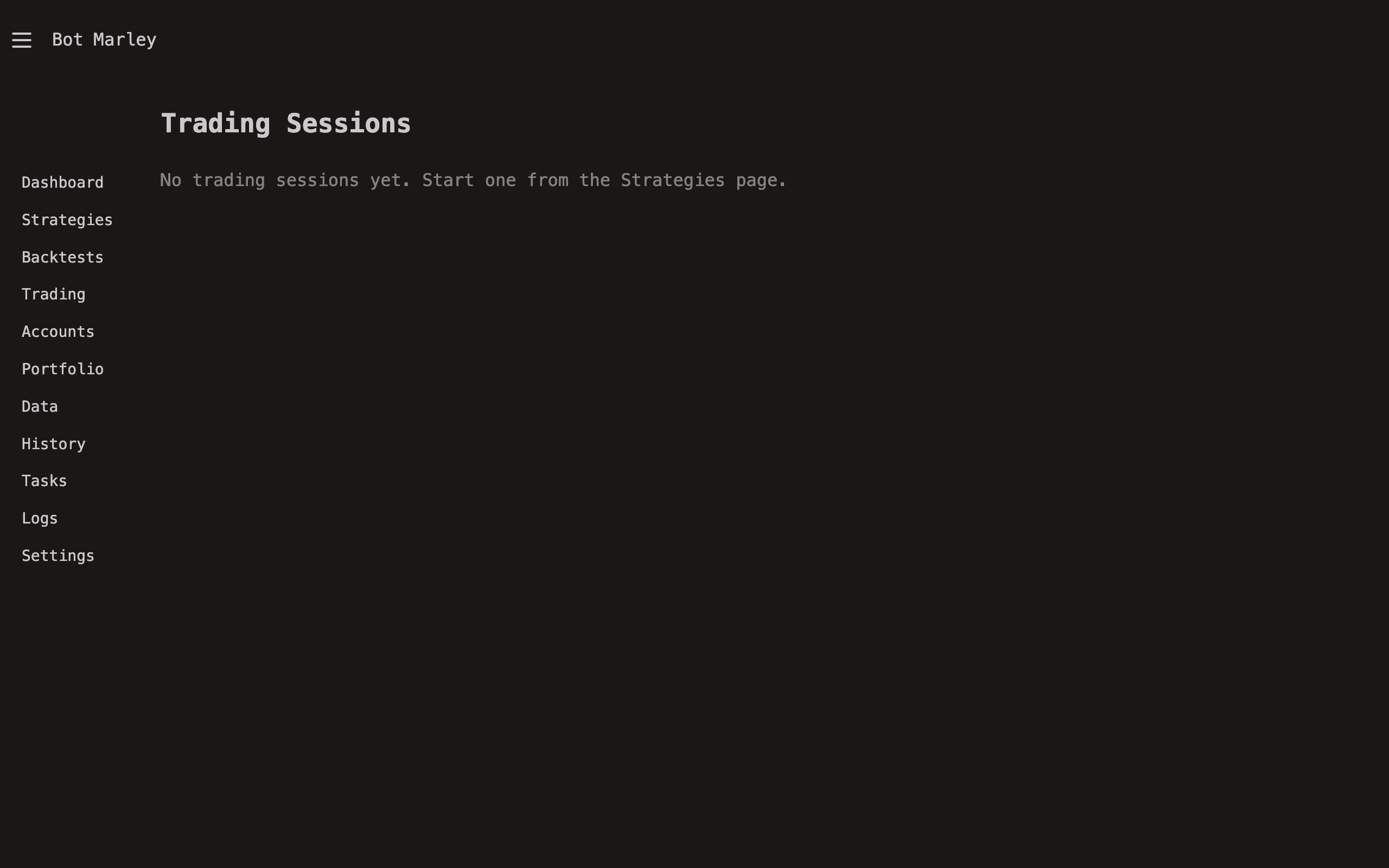
Navigate to Trading in the sidebar. You will see a list of all sessions (active and stopped) and a form to start a new one.
Step 2: Select a Strategy
Choose the strategy you want to run from the dropdown. Only saved strategies appear here. If you need to create or edit a strategy first, visit the Strategy Editor.
Step 3: Select a Trading Pair
Choose the pair you want to trade, such as BTC/USD or ETH/USD. The available pairs are configured in Settings.
Step 4: Select an Account
Choose the account that the session will trade through:
- Paper account -- simulated trading, no real orders. Ideal for testing.
- Exchange account (Kraken or Binance) -- real exchange trading. Real order execution is currently supported for Binance accounts only. Orders are placed on Binance with real money.
Selecting a Binance account means the bot will place real orders with real funds. Make sure you have tested the strategy thoroughly in Paper mode first. (Kraken accounts support candle fetching and data sync, but real order execution is Binance only.)
Step 5: Set Initial Capital
Enter the starting USD balance for this session. For Paper accounts, this creates a simulated balance. For exchange accounts, this sets the budget the strategy will work with (it does not transfer funds -- your exchange account must already have sufficient balance).
Step 6: Start
Click Start. Botmarley will:
- Validate that the strategy, pair, and account exist.
- Take a snapshot of the current strategy TOML (so future edits do not affect this session).
- Enqueue a
TradingStarttask in the task queue. - The task worker spawns the trading engine as a background async task.
- The engine loads its initial candle buffer and begins polling for new data.
The session will appear in the session list with status Running.
Session Lifecycle
A trading session moves through a defined set of states:
stateDiagram-v2
    [*] --> Running: Start
    Running --> Paused: Pause
    Paused --> Running: Resume
    Running --> Stopped: Stop
    Paused --> Stopped: Stop
    Running --> Failed: Error
    Running --> Running: Server restart (auto-recovery)
    Paused --> Running: Server restart (auto-recovery)
Pausing a Session
Clicking Pause on a running session sends a pause command to the engine via its control channel. The engine:
- Finishes processing the current poll cycle (does not interrupt mid-evaluation).
- Enters a paused state -- it stops fetching new candles and evaluating triggers.
- Keeps the session state intact in memory and the database.
- Records a "paused" event in the session event log.
While paused:
- No new candles are fetched. The market continues to move, but the engine is not watching.
- No triggers are evaluated. Even if conditions are met, no trades execute.
- Existing positions remain open. Pausing does not close positions.
- The session appears as "Paused" in the UI with a Resume button.
Pausing is useful when you want to temporarily stop a strategy without losing its state -- for example, during scheduled exchange maintenance, before a major news event, or while you review recent trades.
Resuming a Session
Clicking Resume on a paused session sends a resume command. The engine:
- Exits the paused state.
- Fetches any candles that were produced while paused (backfills the gap).
- Resumes normal polling and trigger evaluation.
- Records a "resumed" event in the session event log.
The session continues exactly where it left off, with all positions, balances, and counters intact.
Stopping a Session
Clicking Stop sends a stop command. The engine performs a graceful shutdown:
- Finishes the current poll cycle.
- Saves the final session state to the database (balance, PnL, candle count, portfolio snapshot).
- Records a "stopped" event in the session event log.
- Exits the background task.
The session is marked as Stopped in the database. Stopped sessions cannot be resumed -- they are finished. Their data (action log, charts, PnL history) remains available for review on the session detail page.
Stopping a session does not close open positions. If you have open positions on an exchange account, you will need to manage them manually on the exchange after stopping the session.
Stop All
The Stop All button on the Trading page sends a stop command to every active (running or paused) session simultaneously. This is an emergency measure for situations where you want to halt all automated trading immediately.
Each session receives the stop command independently and performs the same graceful shutdown described above.
Deleting a Session
Deleting a session removes it from the database entirely:
- The session record is deleted.
- All associated trade actions are deleted.
- All session events are deleted.
This action is permanent and cannot be undone.
Deletion is irreversible. If you want to keep the session data for reference, stop the session instead of deleting it. Stopped sessions remain visible in the session list.
Only stopped or failed sessions can be deleted. You cannot delete a running or paused session -- stop it first.
Summary of Actions
| Action | What it does | Reversible? |
|---|---|---|
| Start | Creates a new session and begins trading | No (but you can stop it) |
| Pause | Temporarily halts evaluation; state preserved | Yes (resume) |
| Resume | Continues a paused session from where it left off | N/A |
| Stop | Gracefully ends the session permanently | No |
| Stop All | Stops all active sessions at once | No |
| Delete | Removes session and all its data from the database | No |